

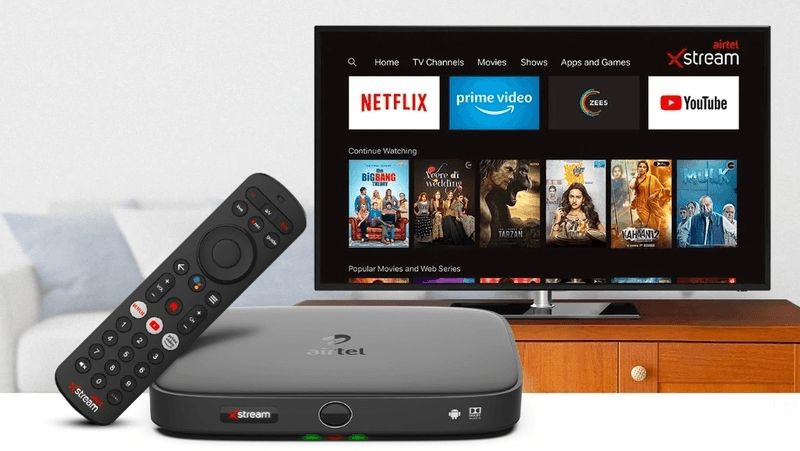
Struggling to connect your new setup box? Whether you have a brand new 4K Smart TV or an older model, connecting a Set-Top Box (STB) — for cable, satellite, or streaming — can sometimes be confusing. With so many cable colors and port names like HDMI, RCA, and RF, it is easy to feel overwhelmed.
Do not worry. This guide will walk you through every method, from the modern “one-cable” solutions to the classic red, white, and yellow cables. By the end of this post, you will be watching your favorite channels in crisp clarity.
What is a Setup Box?
A “setup box” (or set-top box) is a device that receives and decodes television signals so your TV can display them. This could be your cable box, satellite receiver, or a digital converter for over-the-air broadcasts.
Before You Start: Identify Your Ports
Grab your TV remote and look at the back or side of your television. You are looking for one of these three types of connections. Match your cables to the ports available.
1. HDMI (The Best Option)
What it looks like: A thin, wide trapezoid-shaped plug.
Why use it: It carries high-definition video and audio in one cable. It is the simplest and highest quality method.
2. Component (Red, Green, Blue)
What it looks like: Three round holes colored Green (Y), Blue (Pb/Cb), and Red (Pr/Cr).
Audio needed: You will also need two separate audio cables (Red and White).
3. Composite / RCA (Red, White, Yellow)
What it looks like: Three round holes colored Yellow (Video), Red (Right Audio), and White (Left Audio).
Note: This is for older standard-definition TVs. It does not support HD.
Step-by-Step Connection Instructions
Depending on which cable you have, follow the specific guide below.
Method 1: The HDMI Connection (Recommended)
This is the standard for modern televisions and offers the best picture quality.
Step 1: Connect the Antenna/Cable
Take the coaxial cable (the one with the pin in the middle that you screw on) coming from your wall or antenna. Connect it to the “RF IN” or “ANT IN” port on the back of your setup box.
Step 2: Connect the HDMI Cable
Plug one end of the HDMI cable into the “HDMI OUT” port on your setup box.
Plug the other end into any available HDMI IN port on your TV (e.g., HDMI 1, HDMI 2).
Step 3: Power On
Turn on your TV and the setup box.
Step 4: Switch the Source
Using your TV remote, press the button labeled Input, Source, or AV. Select the HDMI port number you plugged the cable into.
Method 2: The Component Connection (For HD on Old TVs)
If you have an older HDTV that lacks HDMI but supports 1080i, you will use five cables.
Step 1: Match the Colors
On the back of the setup box, connect the Green, Blue, and Red cables to the matching Green, Blue, and Red ports for video.
Step 2: Connect the Audio
Connect the Red and White audio cables from the setup box to the Red and White audio input ports on the TV.
Step 3: Select Source
Turn on the TV and select the Component or AV input source.
Method 3: The RF/Coaxial Connection (For Very Old TVs)
If you have a really old TV that only has the screw-on antenna input and no colored inputs:
Step 1: The Loop
Connect the wall antenna to the “RF IN” on the setup box.
Connect a second coaxial cable from the “RF OUT” or “TV OUT” port on the setup box to the Antenna Input on your TV.
Step 2: Tune the TV
Set your setup box to channel 3 or 4 (usually a switch on the back of the box). Then, go to your TV and tune it to channel 3 or 4.
How to Tune (Scan for Channels)
Once the physical wires are connected, you must tell the setup box to find the channels.
- Grab the remote control that came with your Setup Box (not the TV remote).
- Press the MENU button.
- Look for settings named Installation, Channel Search, or Auto Scan.
- Select Auto Scan or Auto Tuning. The box will do the rest.
Troubleshooting: Fix Common Issues
Even with the right cables, things can go wrong. Here is how to fix the most common problems.
“No Signal” or “No Display” Message
The Fix: This usually means the TV is on the wrong source. Press the Input button on your TV remote repeatedly until the picture shows up.
Check: Ensure the HDMI cable is firmly clicked into both devices.
Black and White Picture (Using RCA Cables)
The Fix: You likely mixed up the Red and White audio cables. Double-check that Yellow goes to Yellow (Video). If you plug video into the Red audio hole, you will lose color.
Some Channels are Missing
The Fix: Try running the “Auto Scan” again. If they are premium channels (HBO, Showtime), you may need to contact your service provider to activate your subscription.
Remote Control Doesn’t Work
The Fix: Point your remote at the Setup Box, not the TV. If the box is hidden inside a cabinet, you may need an IR extender or a universal remote.
Conclusion
Connecting a setup box to your TV is a simple process of matching cables and telling the TV which “input” to listen to. For the best experience, always use an HDMI cable. It takes less than five minutes and instantly upgrades your viewing experience.
Did this guide help you? If you are still having trouble, leave a comment below with your specific TV and Setup Box model and we will help you troubleshoot.